
MLOps explained - MindMap
This MindMap was created using the following Microsoft Youtube Video: MLOps explained | Machine Learning Essentials
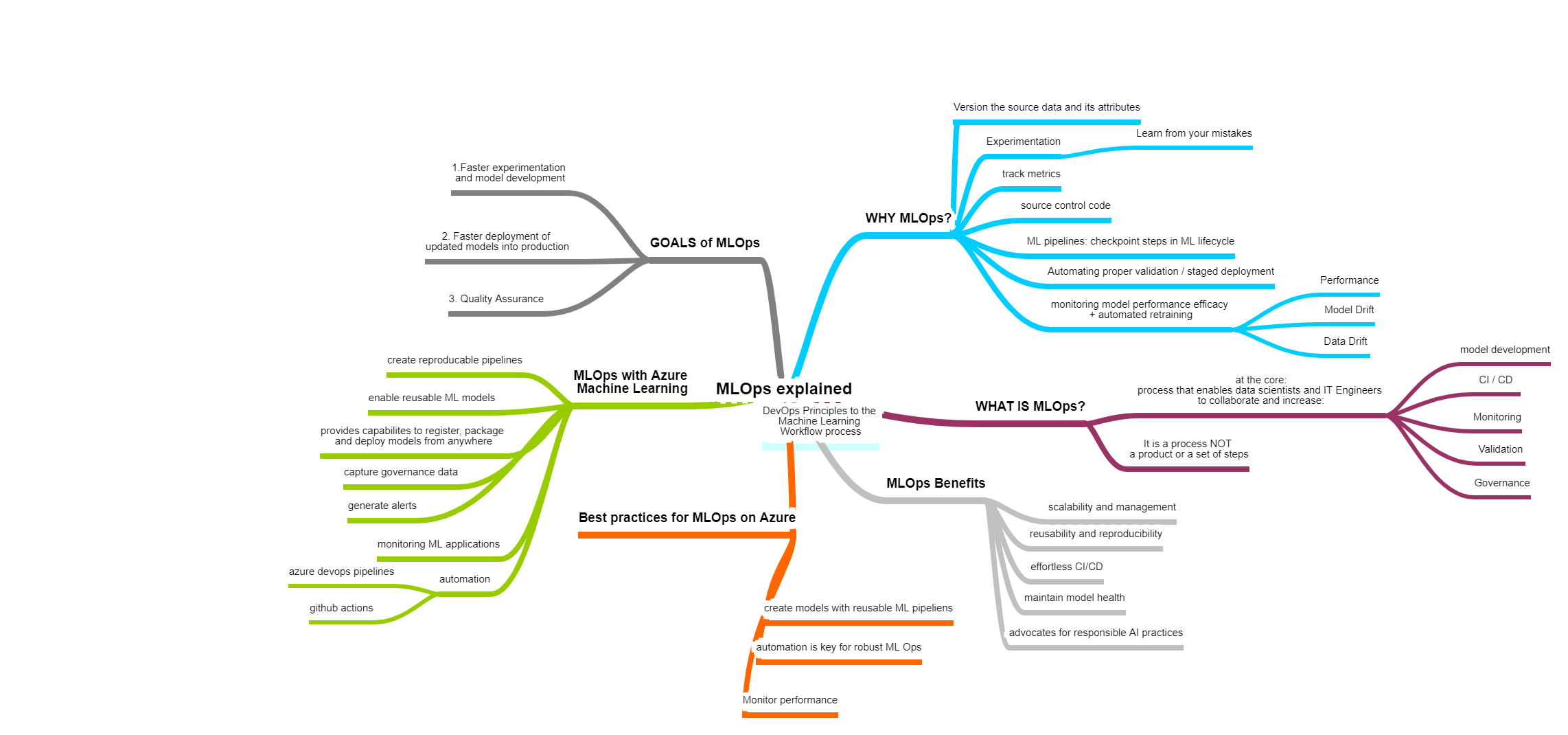
This MindMap was created using the following Microsoft Youtube Video: MLOps explained | Machine Learning Essentials
I created this Azure Monitor MindMap last year to get a better Overview over Azure Monitor. I’ve created it based on the Azure Monitor Documentation. Somethings may be outdated today -> you can find the Microsoft Docs to that topic here: Azure Monitor

Um eine gewisse Übersicht über die ganze Microsoft Lizenzierung zu erhalten, habe ich folgendes MindMap erstellt: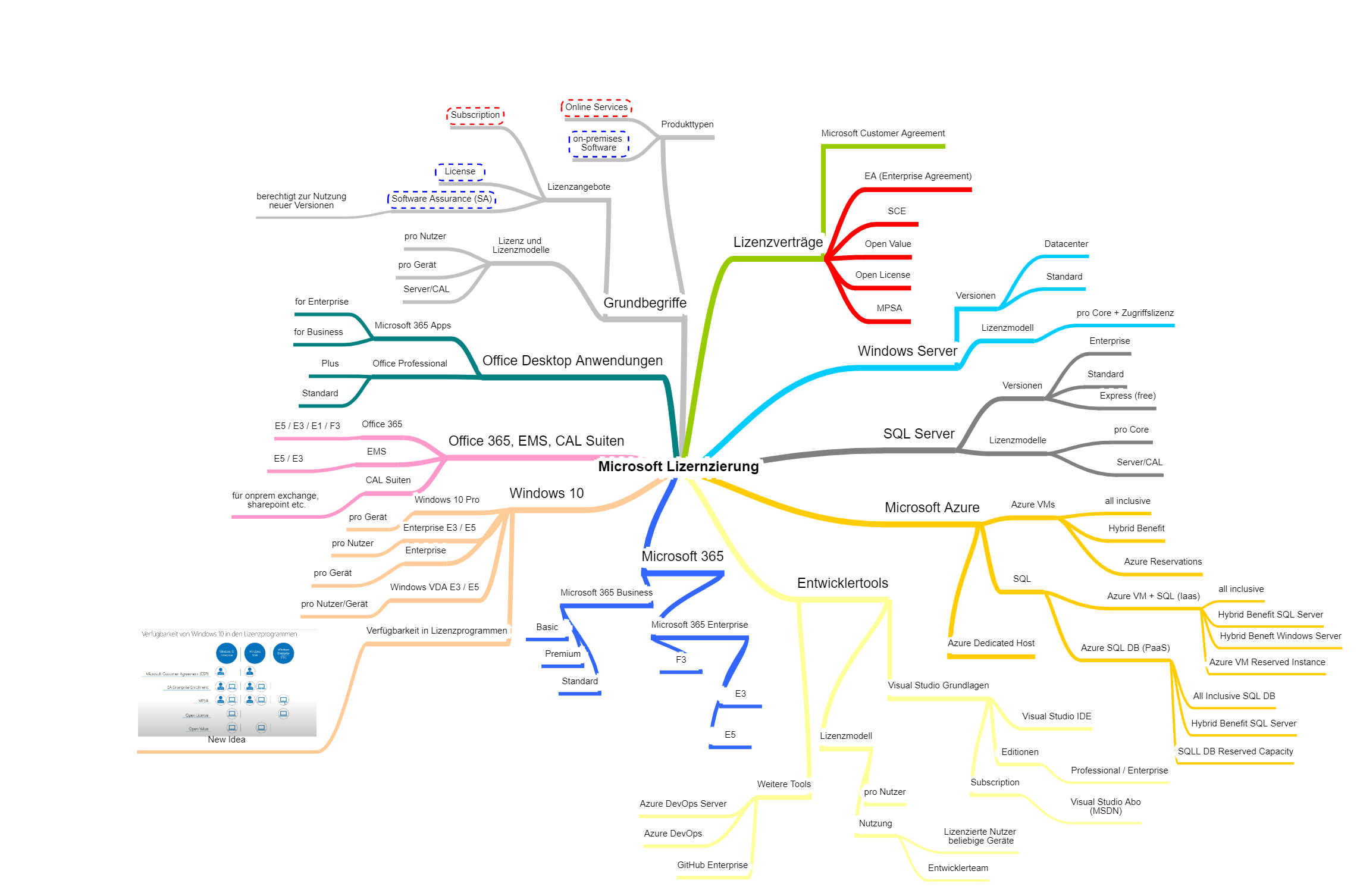
Das MindMap wurde anhand des Microsoft Webinars “Grundlagen der Microsoft Lizenzierung” erstellt: https://www.youtube.com/watch?v=pM7g56pIgJI
Offizielle Microsoft Links https://www.microsoft.com/en-us/licensing/default https://www.microsoft.com/en-us/Licensing/learn-more/volume-licensing-briefs
Sehr hilfreich um die verschiedenen Microsoft Pläne zu vergleichen: https://m365maps.com/
DevOps the three Ways from the DevOps Handbook The DevOps Handbook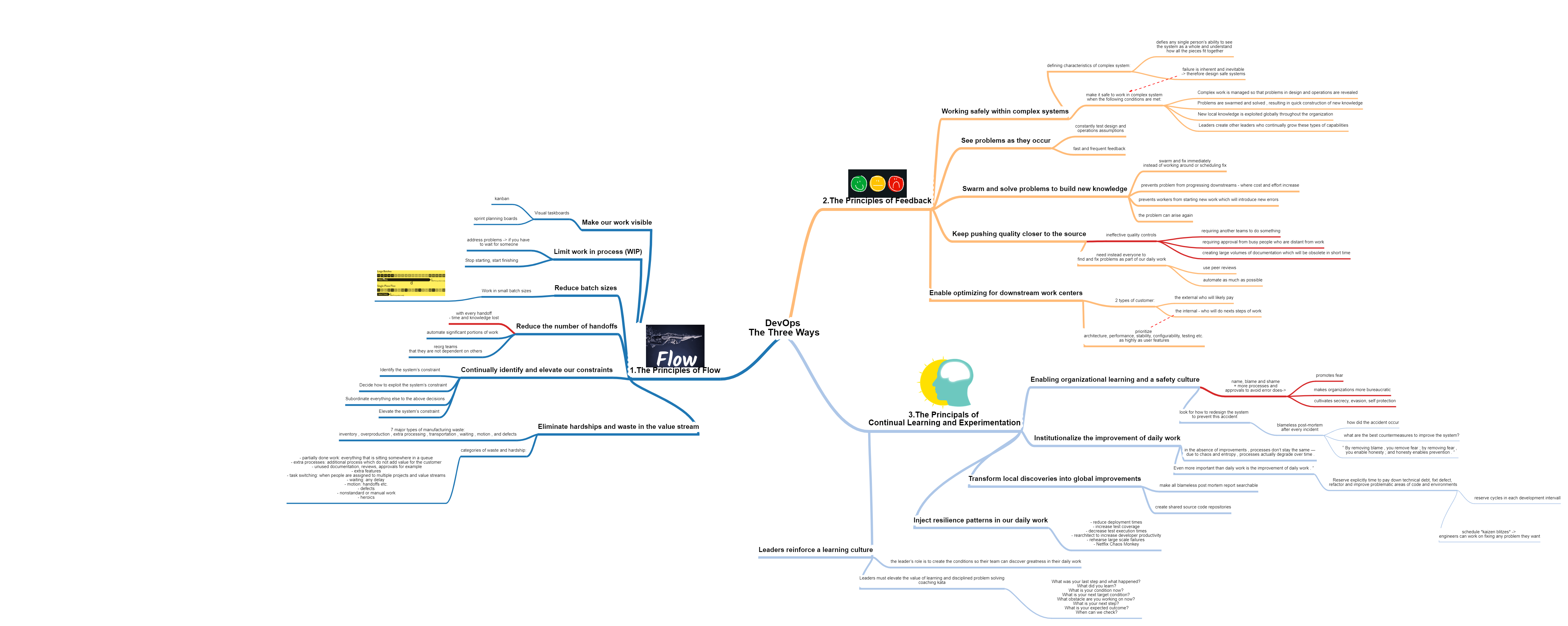
This MindMap tries to give an Overview over the book Building Powershell Modules - Brandon Olin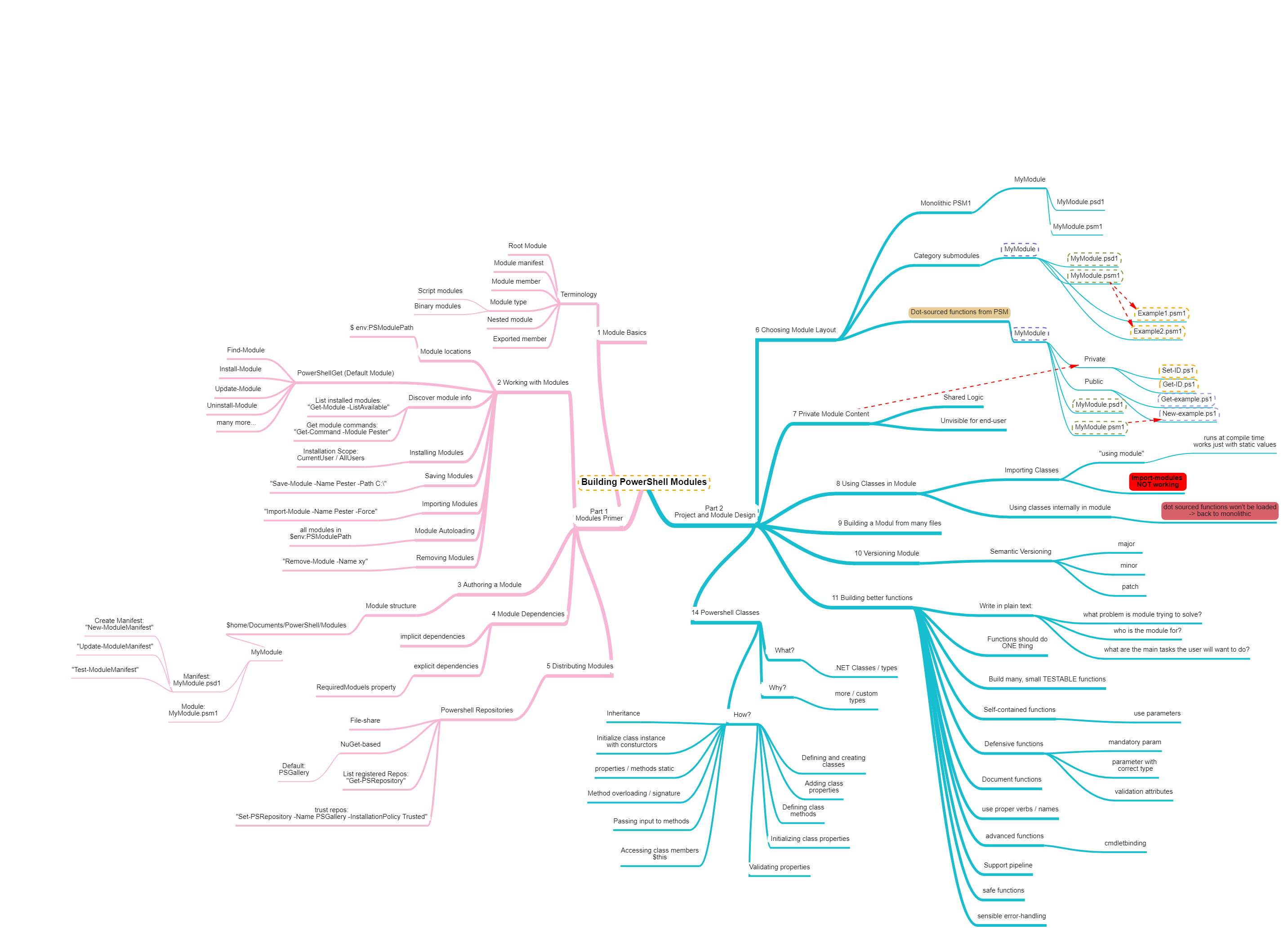
You can find the official documentation from Microsoft to that topic here: Microsoft Docs - Hybrid Identity
In this MindMap you can see the different Authentication and Single Sign On Methods which are available.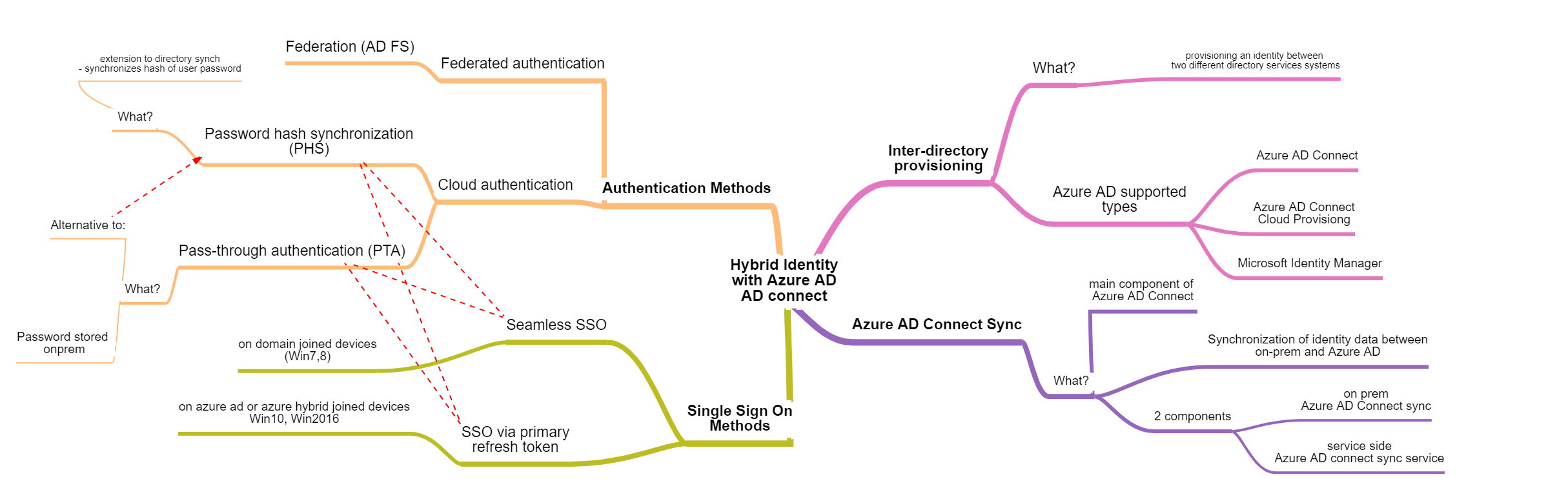
MindMap Overview - DeepWork - Carl Newport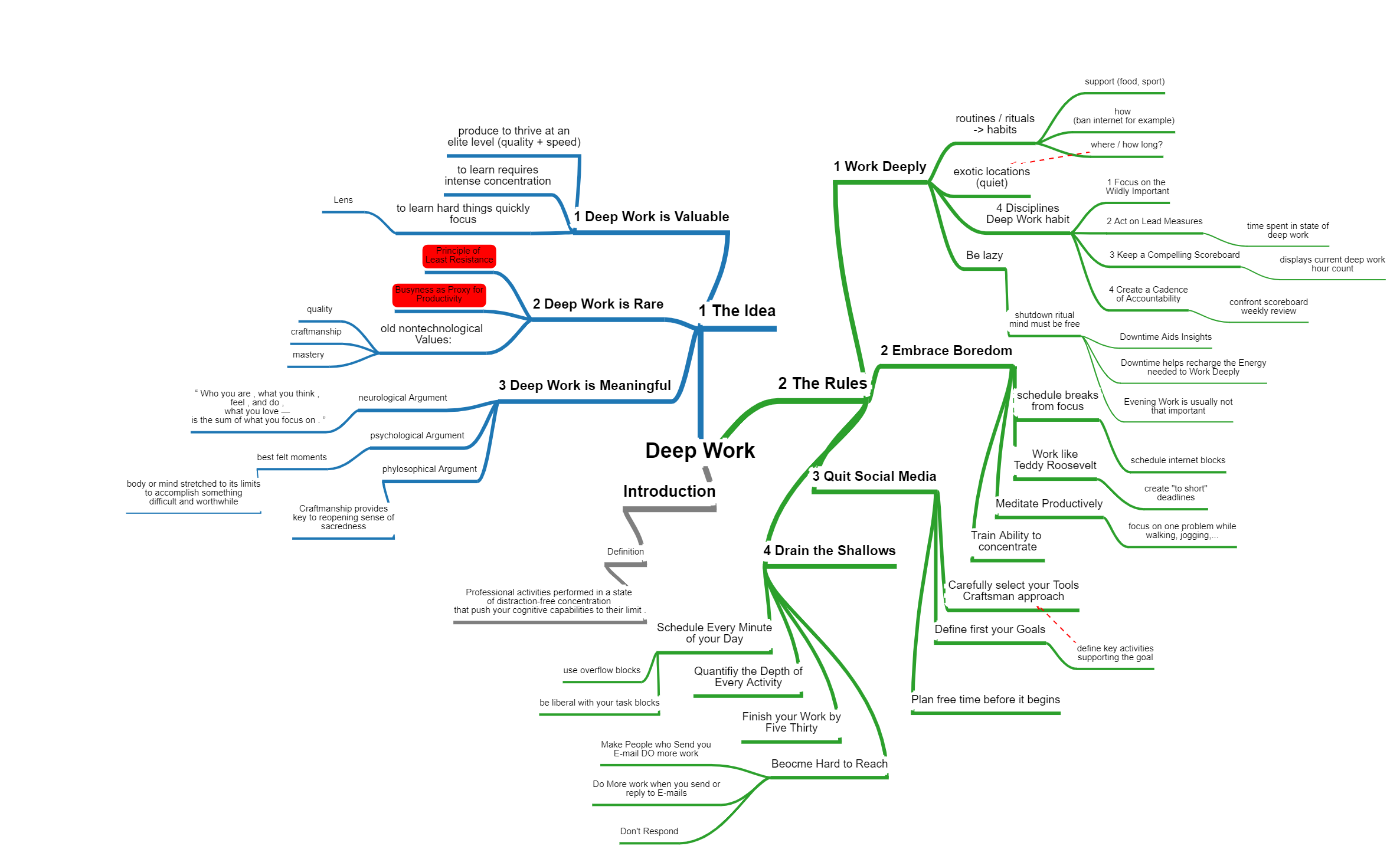
Dieses MindMap bietet eine grobe Übersicht über das Buch Eden Culture von Johannes Hartl: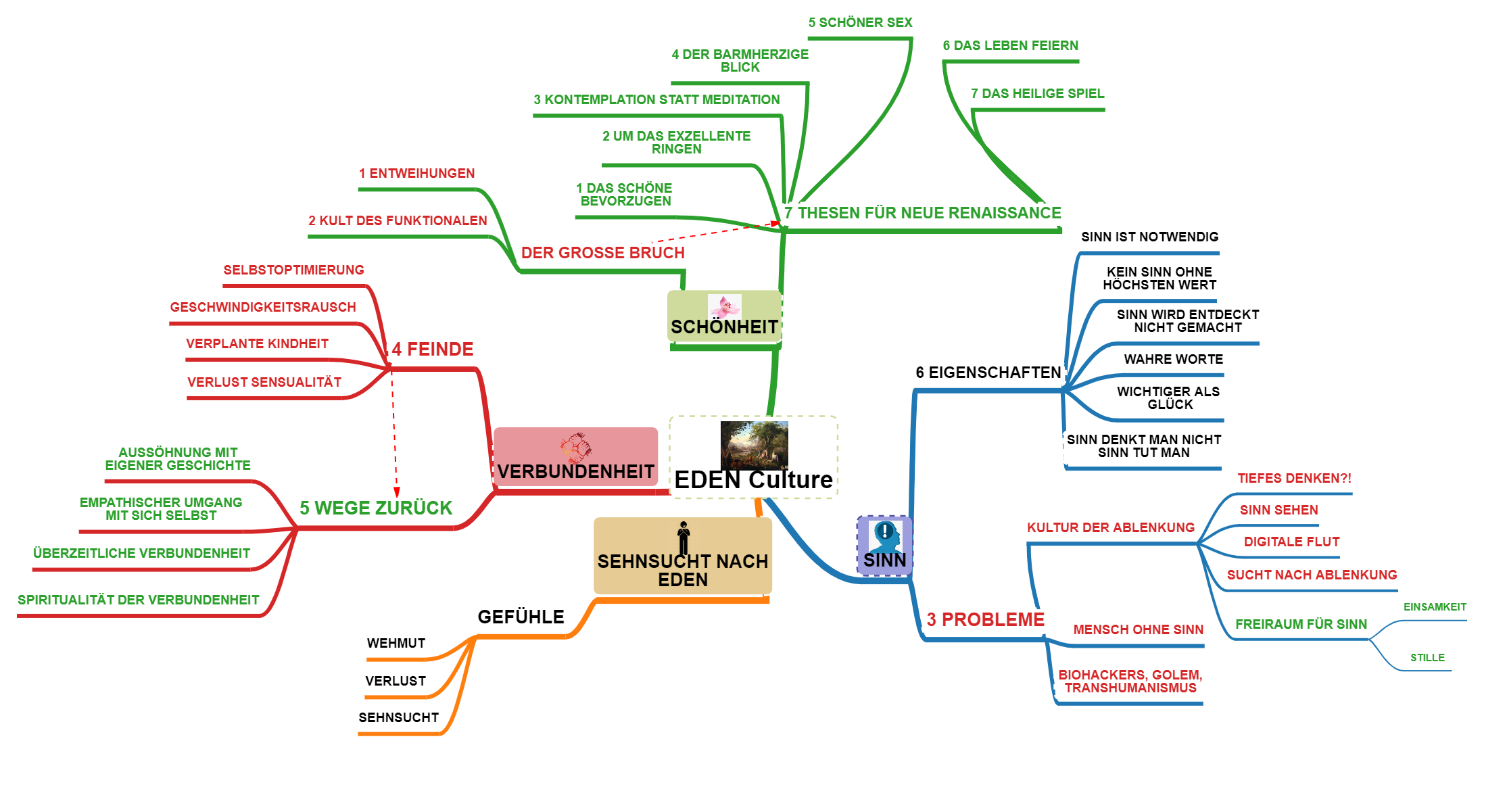
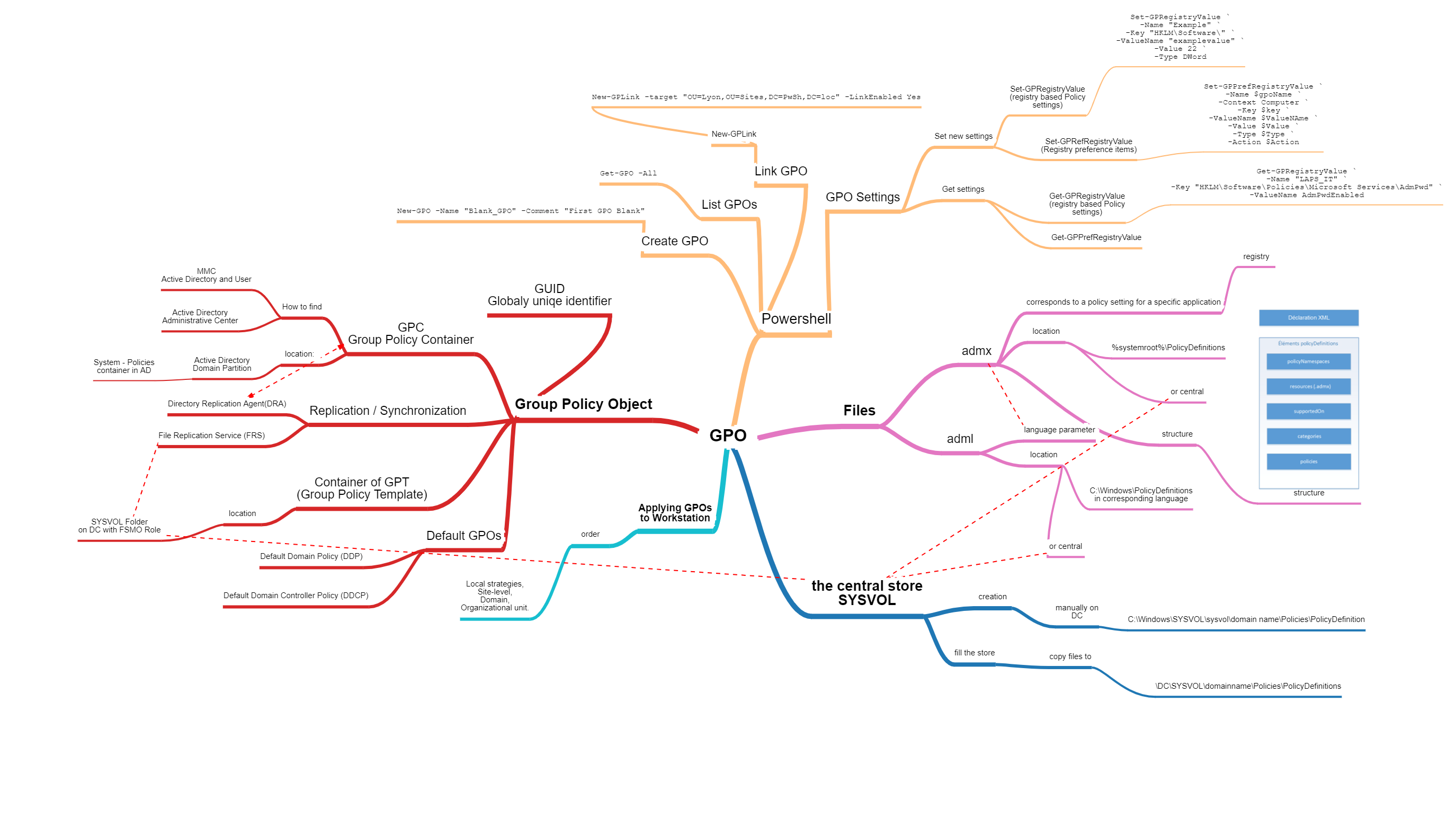
I can you recommend this blog GPO From zero to hero In the following MindMap I’ve tried to create a little Overview of GPO in Active Directory Environments
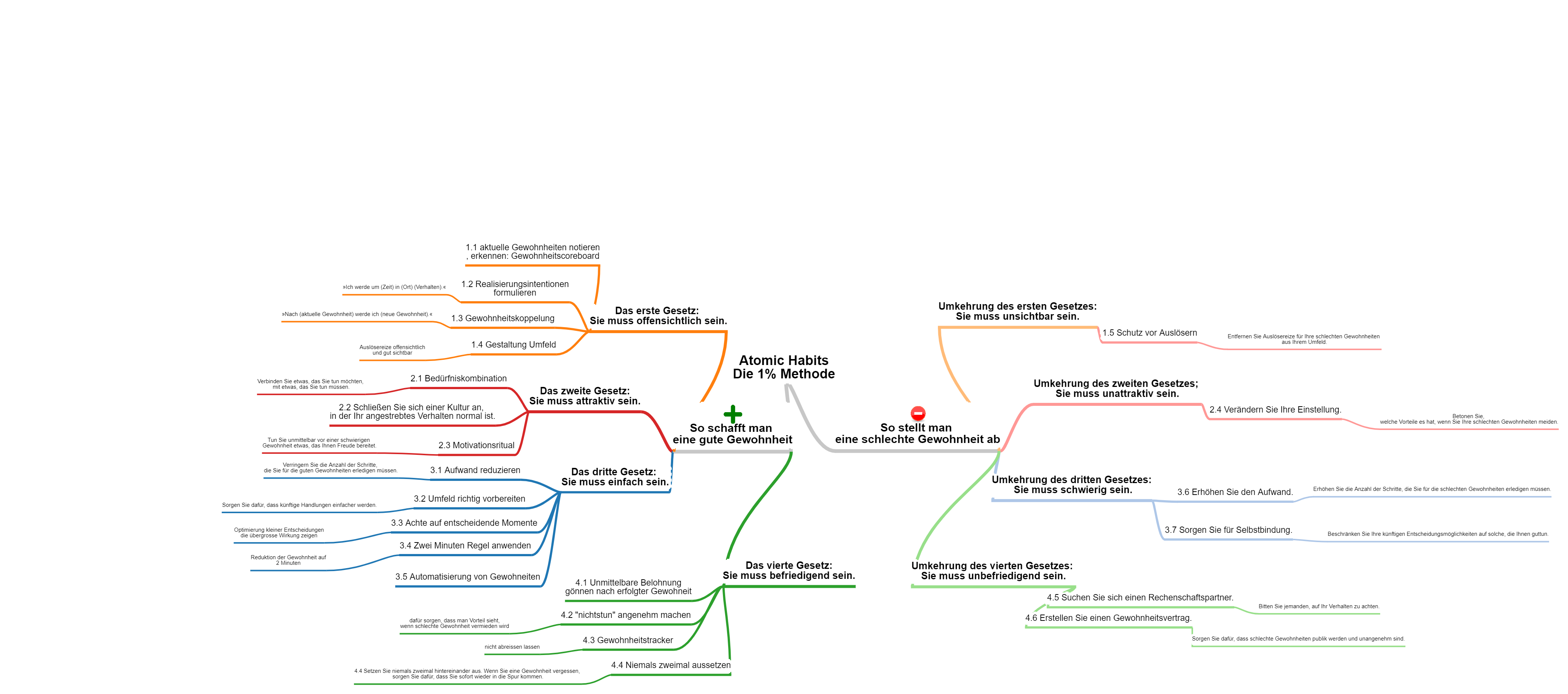
In diesem MindMap habe ich versucht die wichtigsten Ansätze des Buches Atomic Habits - oder auf deutsch “Die 1% Methode” zusammenzufassen. Ich kann das Buch sehr empfehlen: Atomic Habits - Die 1% Methode:
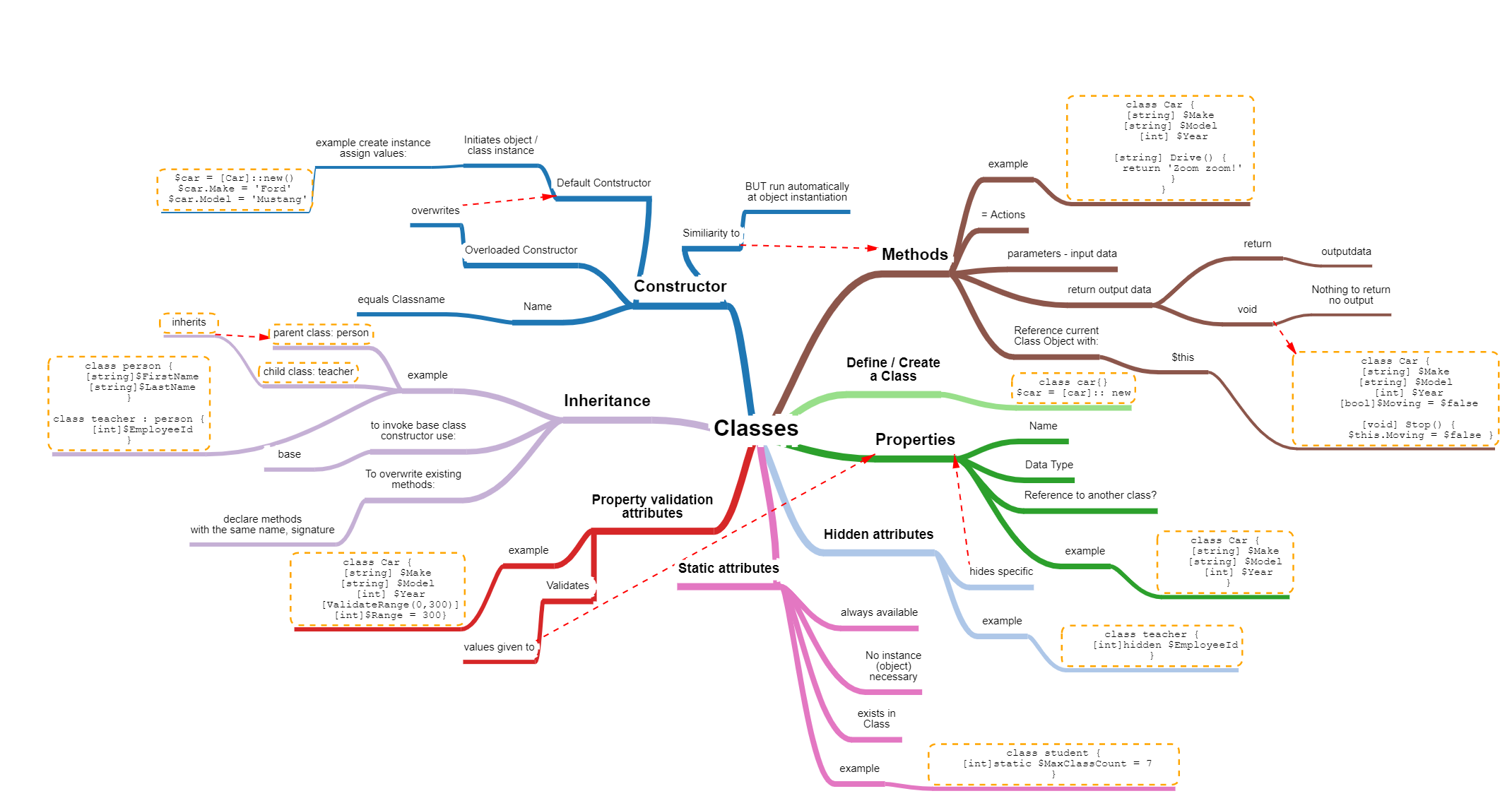
A MindMap about PowerShell Classes
I’m learning PowerShell and tought it could be helpful to create a MindMap about Classes. It should help to get a better overview over the topic.
To learn more about classes follow those links:
Demo Windows Sandbox Customization with Powershell DSC
In this Demo I’m going to show you how you can use the Windows Sandbox and do some customization with Powershell DSC.
First you need to enable the Windows Sandbox. You can do that by enabling the windows feature using the GUI or enable it with Powershell:
Enable-WindowsOptionalFeature -FeatureName "Containers-DisposableClientVM" -Online
You can create a XML Config file like the following example and save it anywhere as .wsb -> which will link automatically to Windows Sandbox :
Useful Chocolatey commands
search a package:
choco search appname
Install a package
choco install appname
list all installed packages
choco list -localonly
list specific package
choco list appname
upgrade specific package:
choco upgrade appname
upgrade all packages
choco upgrade all
ExchangeOnline Mailadressen anzeigen, hinzufügen, entfernen'
Das ExchangeOnlineManagment Module muss installiert, importiert sein und man muss sich mit der entsprechenden Exchange Online Umgebung verbinden:
ExchangeOnlineManagement Module in Powershell installieren:
Install-Module -Name ExchangeOnlineManagement
Das Module importieren:
Import-Module ExchangeOnlineManagement
Mit der Exchange Online Environment verbinden (run this command as admin, then login)
Connect-ExchangeOnline -UserPrincipalName admin@customerdomain.onmicrosoft.com
Für die Befehle im lokalen AD, muss das ActiveDirectory Powershell Modul geladen sein: https://theitbros.com/install-and-import-powershell-active-directory-module/
You can query the ClassName win32_operatingsystem and select from there the computername csname and the last bootup time lastbootuptime
Get-CimInstance -ComputerName 'DC01' -ClassName win32_operatingsystem | select csname, lastbootuptime
If you want to do that for multiple computers you can for example do it wit a foreach loop:
# First query the computer from which you want to have this information:
$computer = Get-ADComputer -Filter * | where Name -Match dc
# Now get the lastbootuptime for every computer in the computer array:
foreach($c in $computer){
    $computername = $c.DNSHostname
    Get-CimInstance -ComputerName $computername -ClassName win32_operatingsystem | select csname, lastbootuptime
}
If you’re curious what other information you can get from this class you can simply run a Get-Member which will list you all properties and methods:
A way to search a specific setting over all GPOs
You can generate a GPO Report over your Domain either in a XML or HTML file and then search through that file.
To generate a XML use this command:
Get-GPOReport -All -Domain "domain.com" -Server "DC01" -ReportType XML -Path "C:\GPOReports\GPOReportsAll.xml"
To generate a HTML file you can use this command:
Get-GPOReport -All -Domain "domain.com" -Server "DC01" -ReportType HTML -Path "C:\GPOReports\GPOReportsAll.html"
All GPO settings will be included in this Report file. So you can search through that file and find your settings.
How to run a gpresult on a remote computer
You can simply use the Invoke Command to run the gpresult command on a remote computer:
here comes the new highlight:
| |
In the following script you just have to define the username + the RDS ConnectionBroker. It will automatically find the Remote Desktop Server where the user is logged in an run the gpresult there:
Die folgende Infografik gibt einen groben Überblick zu den Themen:
Zum Thema habe ich auch ein kurzes Video erstellt: https://youtu.be/Tp9WzwUMjDs
